
When you write fractions, they are typically separated by a line that is the width of the numerator and denominator. If you'd like to have a fraction without line separation in an equation, then the \genfrac command can be used.
Creating Fractions With genfrac
The genfrac command is provided by the amsmath package and allows us to customize how we create fractional structures. In its basic form, it has six argument positions: the first two are delimiters on the left and right (the braces, parentheses, etc.) that surround the expression; the third defines the rule thickness (0pt in this case removes the bar); the fourth defines the math style (in this example, empty means surrounding math style); the fifth and sixth arguments are the top and bottom entries of the fraction.
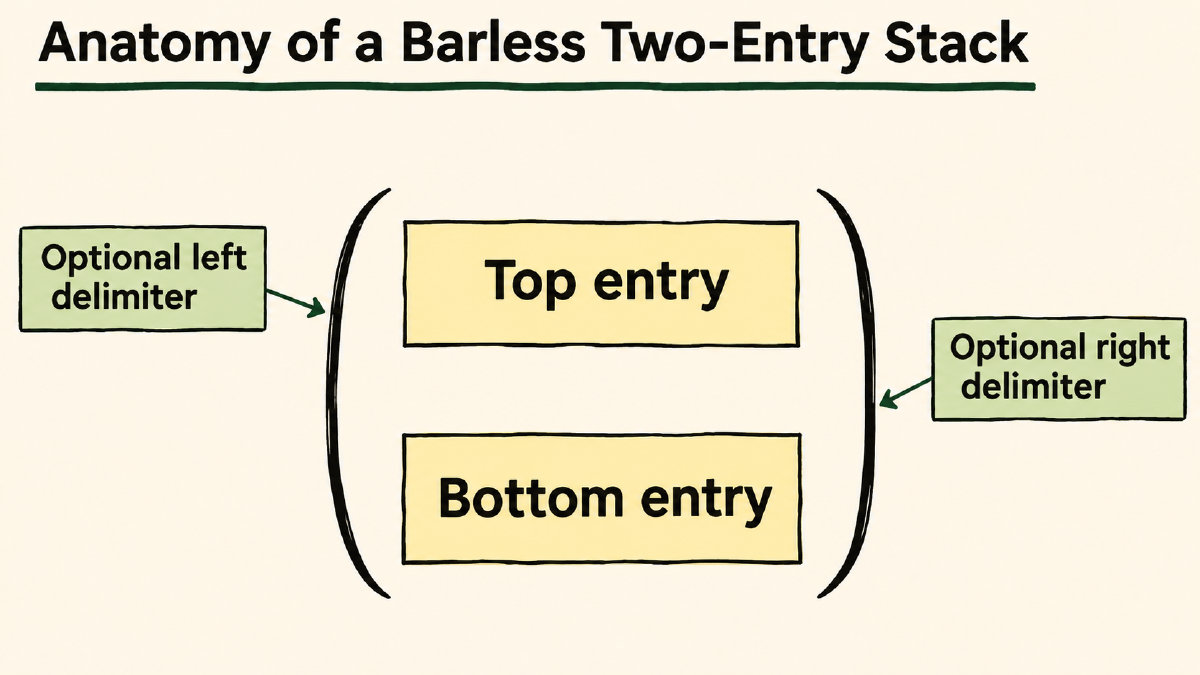
For example, using the following code:
\documentclass{article}
\usepackage{amsmath}
\begin{document}

$\genfrac{}{}{0pt}{}{a}{b}$

\end{document}
produces a simple stack with a above b and no bar. The next three examples show that the first two arguments define the left delimiter and the right delimiter of the stack, which could be braces or even nothing at all. All of them preserve the zero rule thickness of 0pt.
In this example, I didn't use any delimiters at all:
$\genfrac{}{}{0pt}{}{a}{b}$
If I use braces instead, then it becomes:
$\genfrac{\lbrace}{\rbrace}{0pt}{}{a}{b}$
Finally, I could also enclose it in parentheses instead of braces, as shown here:
$\genfrac{(}{)}{0pt}{}{a}{b}$
Inline vs Display Styling
Now consider inline styling versus display styling. With its fourth argument empty, the genfrac command follows the surrounding math style. You can request that the genfrac command generate a display-style fraction, however, by setting the fourth argument to 0. For instance, the following two lines leave that argument empty, so the first uses text style and the second uses display style:
$\genfrac{}{}{0pt}{}{a}{b}$
$$\genfrac{}{}{0pt}{}{a}{b}$$
As with the standard \frac command, the genfrac command will respect locally scoped requests for specific styles, too. Here, both the top and bottom stacks are created with display-style commands:
${\displaystyle\genfrac{}{}{0pt}{}{a}{b}}$
And similarly, the following generates a text-style (i.e., paragraph-style) stack:
$$\textstyle\genfrac{}{}{0pt}{}{a}{b}$$
Note that these two examples use different sizing and spacing: the first uses the larger display style, while the second uses text style. That said, some people might find that increasing the font size in inline mathematics causes increased line spacing, so that may or may not be a concern.
Binomial Coefficients and Mathematical Meaning
A custom two-entry stack isn’t necessarily the same as an ordinary fraction. When writing binomial coefficients, for instance, one would normally prefer to write them using the \binom command rather than as stacked expressions. Similarly, if your intention was to express something like the binomial coefficient n choose k (as in $\binom{n}{k}$), you might choose to express that as a normal fraction, namely $\frac{n!}{k!(n-k)!}$. So in general, the choice comes down to mathematical meaning rather than stacked appearance.