
LaTeX offers the option of crossing out text with its ulem package. This article explains how.
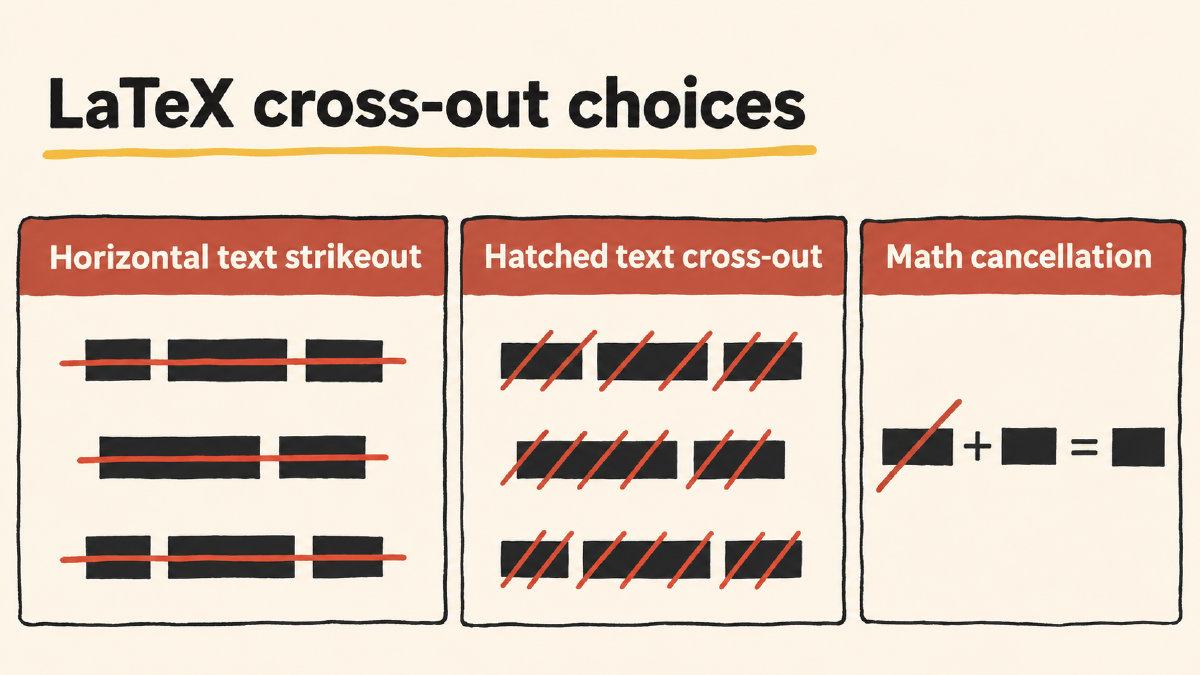
LaTeX can add horizontal or diagonal lines across a piece of text, as well as mathematical cancellation. Here’s how to use the ulem package for text and the cancel package for mathematical cancellation.
Restore normal emphasis with normalem
The default behavior of the ulem package is to underline the emphasis in your document. That means if you have an emphasis command, say \emph{text}, that will result in a line beneath the text.
But you don’t want to underline every bit of emphasized text, so there are two options: the default and normalem. The default changes the emphasis commands to underlining. With the normalem option, however, the emphasis commands return to their normal behavior (the way they behaved before the ulem package was loaded).
In this example, we’ll be using normalem to restore the normal behavior of emphasis. If you’re not interested in restoring normal emphasis, just loading the package with \usepackage{ulem} suffices.
Open with a minimal complete document
For the purposes of this article, we’ll open with a simple minimal complete example for the horizontal text strikethrough.
Here’s what it looks like:
\documentclass{article}
\usepackage[normalem]{ulem}
\begin{document}

\sout{text}

\end{document}
As you can see, there’s a line through the running text. You’ll notice that this is exactly the same setup that Overleaf recommends when trying to strike out text. But remember that here, we explicitly load the package with the “normalem” option, which restores the normal \emph behavior.
You can also make a different kind of strike through by changing the command; here, the horizontal line has been replaced with a number of short, diagonal strokes:
\sout{text}
\xout{text}
Both of these commands come from the ulem package.
Strike through text with the soul package
An alternative approach is to use the soul package. As per the documentation of the package, the \st command allows hyphenation support (i.e., hyphens are properly identified). It’s used via the following code snippet:
\usepackage{soul}
\begin{document}

\st{Strike through this text}

\end{document}
Mathematical cancellation is a separate task
There’s another situation where you might want to cross something out, which is in math mode. For instance, when solving an algebraic equation, you might wish to cancel out certain terms.
In this case, you can load the cancel package and then use either \cancel, \bcancel, \xcancel or \cancelto. Each does a slightly different job: \cancel crosses the term out with a diagonal slash, while \bcancel has an opposite slope. There’s even an X and an arrow toward a value by the intended mark! Use \xcancel{term} to draw the X, or \cancelto{value}{expression} to draw an arrow pointing to the specified value.
The example below uses the \cancel command inside a math expression:
\usepackage{cancel}
\begin{document}

$\frac{\cancel{x}\,y}{\cancel{x}\,z}$

\end{document}
Only \cancelto requires math mode; \cancel, \bcancel and \xcancel also work in text mode.