
In this article, we will walk you through how to control LaTeX equation numbering in the amsmath package.
Automatic Equation Numbering and Reference
Here, we use the equation environment to number our equation automatically:
\begin{equation}
\label{eq:example}
a + b = c
\end{equation}
``` The label is defined inside the equation itself, and then referenced via either \ref{eq:example} or \eqref{eq:example}. Notice that there’s no added parentheses around the reference number when using \ref, but there are when using \eqref. However, if you want to refer to the equation number without the parentheses, the plain \label and \ref commands would suffice. Load amsmath with \usepackage{amsmath} in your preamble for \eqref; plain \label and \ref work without it.

But what about those equations that span multiple lines? How do they get their own numbers?

## Multiline Equations

If you’re using a multi-line display, such as an aligned expression or a matrix, you have a choice of focusing on individual rows within the display or sharing a single common number across all the lines. For example, here’s a multiline expression:

$$\begin{aligned}

a + b &= c \\

d + e &= f

\end{aligned}$$

The split variant allows us to define aligned pieces under one enclosing number. But the unstarred align will provide automatic numbering for each row individually. Each row must be marked with its own \label command so it will be identified. For one number, place split inside equation:

```latex
\begin{equation}
\begin{split}
a + b &= c \\
d + e &= f
\end{split}
\end{equation}
Use equation* instead to remove that number.
Suppressing Equation Numbers
You can suppress an entire display from being assigned a number using equation*; align* suppresses the numbering throughout an otherwise-numbered block. You might find that suppressing selected rows (within an otherwise-numbered block) may be more useful to your work than simply removing the entire display from numbering.
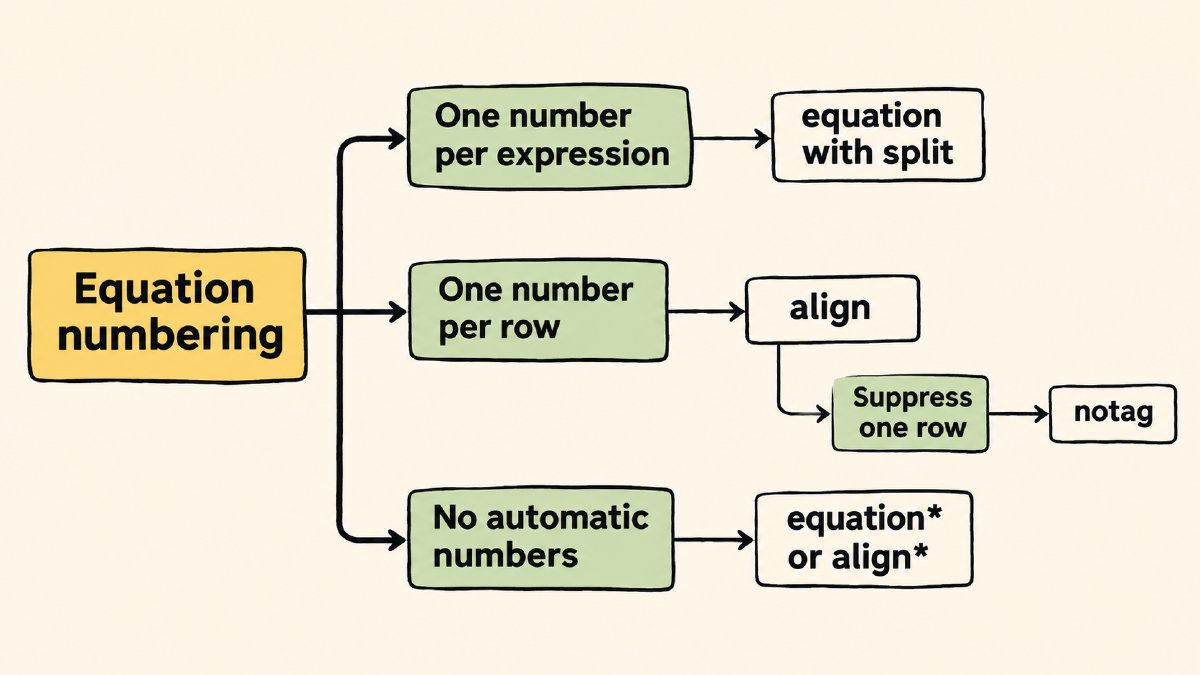
Within the block, we need to place the \notag before the end of the selected align row.
Section-Based Numbering
It’s possible to group equations by section and reset the numbering at each new section. Here, we use \numberwithin to specify that the equation counter will be reset at each section. I’ll mention that \numberwithin{equation}{section} requires amsmath. The section number also appears in each equation number, such as (2.1).
Grouped Equation Numbering
Finally, you can create related displays, which share a parent reference. Then, you can refer to lettered members of that group. The subequations environment allows you to assign a parent reference number to a series of related equations. Here, we use the label immediately after defining the \begin{subequations}, allowing the parent to take its number, while the labels inside each equation identify the corresponding member. This also requires amsmath.
Custom Display Tags
By default, LaTeX places a number in parentheses at the right margin of a displayed equation. If you want to replace this with custom text, you have two options. Both require amsmath. Using \tag{...} adds parentheses to your custom text, whereas \tag*{...} does not.
Troubleshooting References
Occasionally, references won’t resolve properly. That can happen if the label hasn’t been recorded yet, or if you’ve misspelled the name of the label. You should make sure that both the label key used to define the label and the key used to reference it match.
You should also ensure that the label is defined inside the intended numbered equation. In the case of the align environment, you’ll need to make sure that the label resides on the intended numbered row. In the case of subequations, make sure that you’ve opened the subequations environment with the correct label for the parent, rather than assigning an internal label to the members.
Otherwise, the numbering is handled locally by the LaTeX engine, and normally takes two compilation passes to resolve references correctly. On Overleaf, the number of compilation passes necessary to resolve the references is managed automatically.