
If you want to use a LaTeX font like Times New Roman, the font you select has consequences: it affects how readable the text is, as well as the overall look of your work.
LaTeX uses several packages and commands to define fonts. In some cases, there are even several competing approaches for setting your font. This article examines each method, so you can choose which best suits your needs.
You may want to consider using Microsoft Word to create your document, but many people use LaTeX instead because it’s more flexible, especially with mathematical expressions.
But what if you prefer the classic serif typeface known as Times New Roman? Let’s explore the possibilities.
Font setup requirements
To get started, you’ll need a specific preamble that tells LaTeX to actually call the Times New Roman font. You also need a modern compiler, like XeLaTeX or LuaLaTeX (or both). Finally, you’ll need to make sure that the Times New Roman font is installed on your system.
In most situations, I recommend that you stick to PDFLaTeX, since its workflow is more familiar than that of XeLaTeX or LuaLaTeX. However, in those situations where you have a choice, it might be easier to simply switch your LaTeX file to one of these newer compilers, as both XeLaTeX and LuaLaTeX offer support for TrueType and OpenType system fonts, which are used by default when calling the setmainfont command.
Alternatively, you might be able to assign a different font altogether. But if you’re looking for something closer to Times New Roman, then there are a few packages that you could use instead.
There’s another possibility too: the legacy times package. If you’ve ever used LaTeX before, you may have come across this. Unfortunately, though, times does not supply suitable math support, which is an important aspect of any academic paper. That said, it also provides a sans-serif and typewriter font. The latter doesn’t seem to be widely available anymore, however, which is a shame.
As you go through the examples below, I’ve made a decision about whether to include a particular alternative approach to Times New Roman: the main example uses the Times New Roman font, while the others show alternatives. If there’s a way that you can achieve the same result, it’s worth exploring.
A word of warning: “12pt” refers to the font size, not to the page size—so keep the 12pt document-class option and set the page size separately, such as with a4paper. If the brief also asks for one-and-a-half line spacing, add \usepackage{setspace} and use \onehalfspacing, or approximate Word’s spacing with \linespread{1.25}. First, though, I’m going to talk about fonts in general, and the requirements that they place upon your LaTeX environment.
You can compile the sample code shown here and open the resulting PDF in a program such as Adobe Acrobat Reader to see what it looks like.
Using Times New Roman directly
Let’s take a quick look at how to set the LaTeX font to Times New Roman
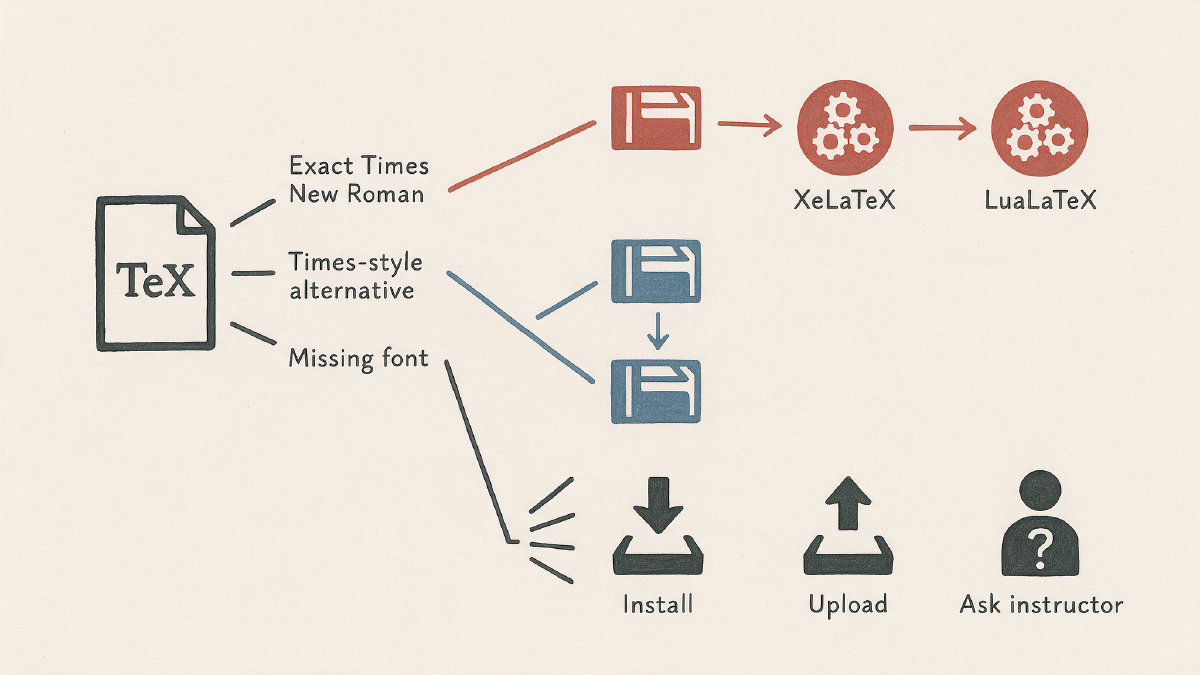
One way of telling LaTeX that you want to use the Times New Roman font is to separate the exact-font route from Times-compatible fallbacks. For instance, if you do:
\documentclass[12pt]{article}
\usepackage{fontspec}
\setmainfont{Times New Roman}
Then you’ll use Times New Roman throughout your LaTeX document.
But you’ll need to make sure that you compile your LaTeX document with either XeLaTeX or LuaLaTeX, which support TrueType and OpenType system fonts — unlike pdfLaTeX.
In fact, there’s an issue: pdfLaTeX cannot directly call the \setmainfont command provided by the fontspec package. To use that feature, you must compile with either XeLaTeX or LuaLaTeX.
pdfLaTeX Times-compatible alternatives
However, there are two other approaches that will work with pdfLaTeX itself. First, if you’re looking for a simple assignment that accepts a Times-style font, the newtxtext and newtxmath packages provide an option that will meet your requirement.
\usepackage{newtxtext,newtxmath}
This package is essentially newtxtext + newtxmath, and supplies a text-plus-mathematics setup that mimics the Times New Roman font, including matching mathematics through newtxmath.
Another package, mathptmx, is also an option. It changes the serif face and supplies the matching math font, but without presenting it as Microsoft Times New Roman. I’d say that mathptmx is the simpler alternative; it certainly requires less typing.
There are a couple of disadvantages to using the legacy times package, including the fact that it doesn’t supply suitable math support. If you do use the legacy times package, then you’ll probably notice a broader sans-serif font.
If you are concerned with the spacing between lines, I’ve also written an article about adjusting that in LaTeX.
Configuring Overleaf
For now, let’s look at how to configure an Overleaf project, so that you can experiment with the code yourself.
Overleaf allows you to choose your preferred LaTeX compiler: select the gear icon within your project, click Compiler in the modal sidebar, and choose XeLaTeX or LuaLaTeX from the Compiler drop-down menu. In order for the fontspec-based preamble shown earlier to build, you’ll need to use one of those two compilers.
Missing font troubleshooting
Finally, you might encounter a problem with a missing font — perhaps because the engine isn’t supported, or because Times New Roman isn’t installed. Alternatively, the font files might not be permitted for upload. In that case, falling back to the Times-style packages mentioned earlier is a good idea.
When it comes to the actual font, though, the Times Roman fonts are very similar to each other. They won’t be pixel-identical, however, and page metrics may vary slightly. Strictly speaking, they aren’t required to produce identical pages, however, and it might not matter if all you need is a close approximation.