
LaTeX can create boxes that surround text, but they’re not quite as flexible or customizable as the boxes you might be used to from Word. This article explains how to use them and provides examples of their usage.
Basic Frames and Content Position
A box can enclose some text by enclosing it within \fbox{text} or \framebox{text}. These basic frames are roughly equivalent, with one exception: \framebox allows for an optional width and content position. For example, we can make a narrow frame:
\documentclass{article}
\begin{document}

\framebox{\textit{This is an easy way to box text within a document!}}

\end{document}
The result will be a small frame that contains the text “This is an easy way to box text within a document!”. In addition, you can specify how wide the frame is. You’ll have to decide if the frame should protrude slightly. For instance, this narrow-frame box:
\framebox[0.8\width][r]{Bummer, I am too wide}
will appear as a narrow box whose text is right-aligned, while the following narrow-frame box:
\framebox[1cm][l]{never mind, so am I}
looks like the previous, except the text is left-aligned within the 1cm-wide frame and protrudes to the right.
Padding and Border Thickness
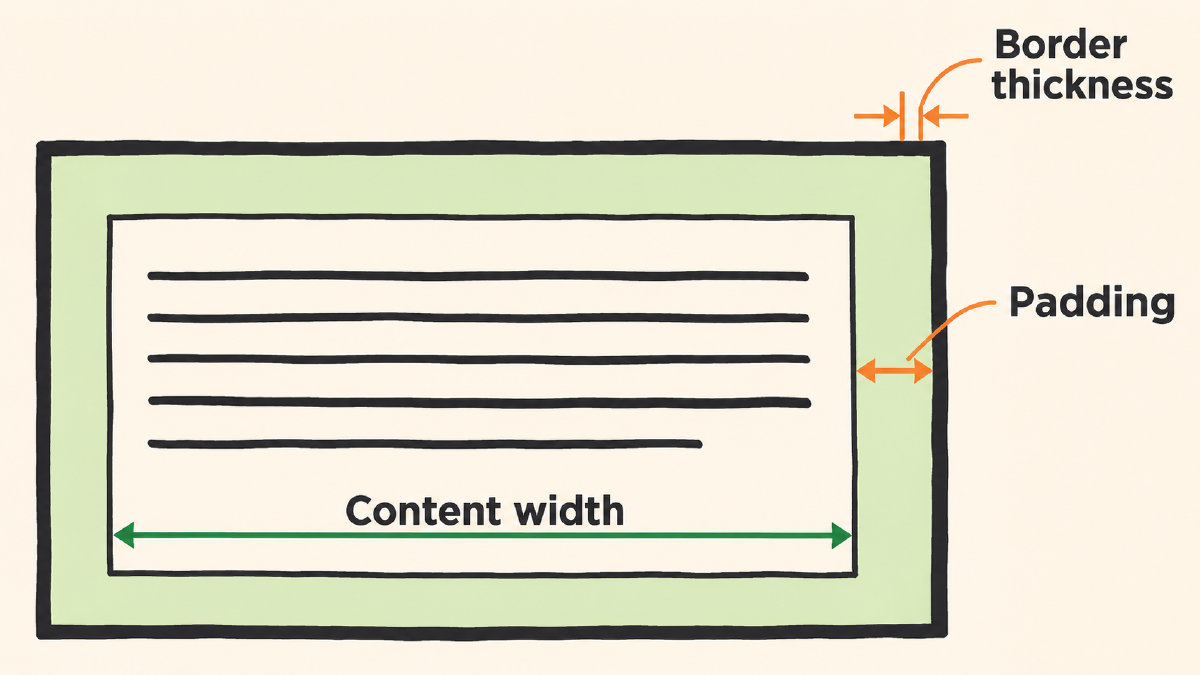
LaTeX also has controls to set the padding between the box and its contents (called \fboxsep) and the thickness of the border (\fboxrule). The next two lines show how these work:
{\setlength{\fboxsep}{6pt}\setlength{\fboxrule}{0.8pt}\fbox{text}}
Note that the settings only affect the next box — later boxes retain their previous settings. In this case, both the padding and the border thickness are changed locally, enclosed within braces.
Line Wrapping With an Inner Paragraph Box
Finally, an inner paragraph box supplies the capability of line wrapping. This means that, when the text becomes too long, it wraps to the next line automatically. However, both \fbox and \framebox don’t provide this automatic line breaking, which would mean that the text just continues. That’s where \parbox comes into play, as shown below.
Here’s an example of using \parbox with a fixed-width paragraph. Note that \parbox doesn’t allow multiple paragraphs, unlike a minipage. So you can see how it compares to \fbox inside of \framebox:
\documentclass{article}
\begin{document}

\fbox{\parbox{0.6\linewidth}{This is a paragraph of text, wrapped across several lines.}}

\end{document}
Multiple Paragraphs in a Minipage
To accommodate multiple paragraphs, we need to wrap them in a minipage container instead:
\framebox{\begin{minipage}{0.6\linewidth}
This is a paragraph of text, wrapped across several lines.
Another paragraph here.
\end{minipage}}
Page Breaks With the Framed Package
For longer framed passages, you can use the framed package. It provides a page-breaking option for framed text, meaning that it will break up the text into multiple pages when necessary. The difference between continuation across pages versus wrapping lines inside a box is significant, because an inner paragraph box wraps text automatically to its specified width.
Use the \usepackage{framed} command in your document preamble. Then, place any material within \begin{framed} and \end{framed}:
\usepackage{framed}
\begin{document}

\begin{framed}

This is an easy way to box text within a document!

\end{framed}

\end{document}
The page breaks allowed within framed material can be especially helpful for large documents or sections of text that are lengthy.