
I know you can just copy and paste the degree symbol, but if you don’t have the right keyboard hardware, then what do you do? In this post, we’ll look at how to make a degree symbol (°) inside of Microsoft Word for Windows. We’ll look at two methods: using the Insert menu and the keyboard shortcut.
The problem with trying to insert the degree sign inside of Word is that there are several characters that resemble it. So we need to be careful when inserting the character to ensure that we choose the correct one.
In addition, inserting the degree symbol requires specific keyboard shortcuts and input devices that may not be available on all laptop computers. For those who use a standard desktop keyboard with a 10-number keypad, these steps should work fine. If your laptop does not include a numeric keypad, however, then you’ll want to use the Insert menu method instead.
What is the degree symbol?
There’s nothing like a hot day, right? The temperature has climbed above 80 degrees Fahrenheit (or Celsius, as well), which feels quite comfortable. But what does that mean? A “degree” is a unit of measurement used in a number of different disciplines. You’ve probably heard it used with reference to temperatures, such as the difference between the high of 90°F and the low of 50°F — they both differ by 40 degrees.
It’s also used in math and geometry, such as angles or vectors. For example, a 45-degree angle is an important part of triangle mathematics, as well as vector calculations. And then there’s also the ordinal indicator, although that might not sound familiar. The masculine ordinal indicator (º) is a different character from the degree symbol (°). Be careful to choose ° when you mean degrees.
So now, let’s take a look at how to create the degree symbol in Word for Windows, as well as the other similar characters, too.
Insert the degree sign in Word
If you’re working within Word for Windows, then you have the option to use either the Insert menu or a keyboard shortcut to add a degree sign to your document. The Insert method works without requiring any special hardware. On the other hand, the keyboard shortcut requires you to press down the Alt key while typing a specific number.
But before you try the keyboard shortcut, first check out the alternative method below. If your keyboard doesn’t include a numeric keypad, the shortcut won’t work, so the best way to go about things is via the Insert menu. If it does include a numeric keypad, then you’ll be able to type the shortcut quickly.
Word for Windows: Insert the degree symbol
We’ll start off by assuming that your keyboard includes a numeric keypad. If not, you’ll need to use the Insert menu option, which you’ll see shortly. To insert a degree symbol:
Place the cursor where you want the degree sign inserted.
Click the Insert menu, and then click the Symbol option.
Select More Symbols from the list.
From the Font drop-down, choose the font you want.
From the Subset drop-down, select Latin-1 Supplement.
Scroll to the degree sign (°), and then select it. Finally, click Insert.
After you’ve inserted the degree symbol once, it will appear in the Recently Used Symbols area at the top of the Symbol menu.
Use the keyboard shortcut
To insert a degree symbol using a keyboard shortcut:
Place the cursor where you want the degree sign inserted.
Hold the Alt key down, and then type 0176 on your numeric keypad.
Release the Alt key to complete the process.
Note that you need to use a 10-number keypad; the numbers along the top of the keyboard aren’t going to work here. This method is much more efficient, especially if you’re inserting multiple instances of the symbol throughout a large document.
The degree symbol’s Unicode code is U+00B0, but holding Alt while typing 00B0 is not the shortcut described here. Hold Alt and type 0176 on your numeric keypad instead.
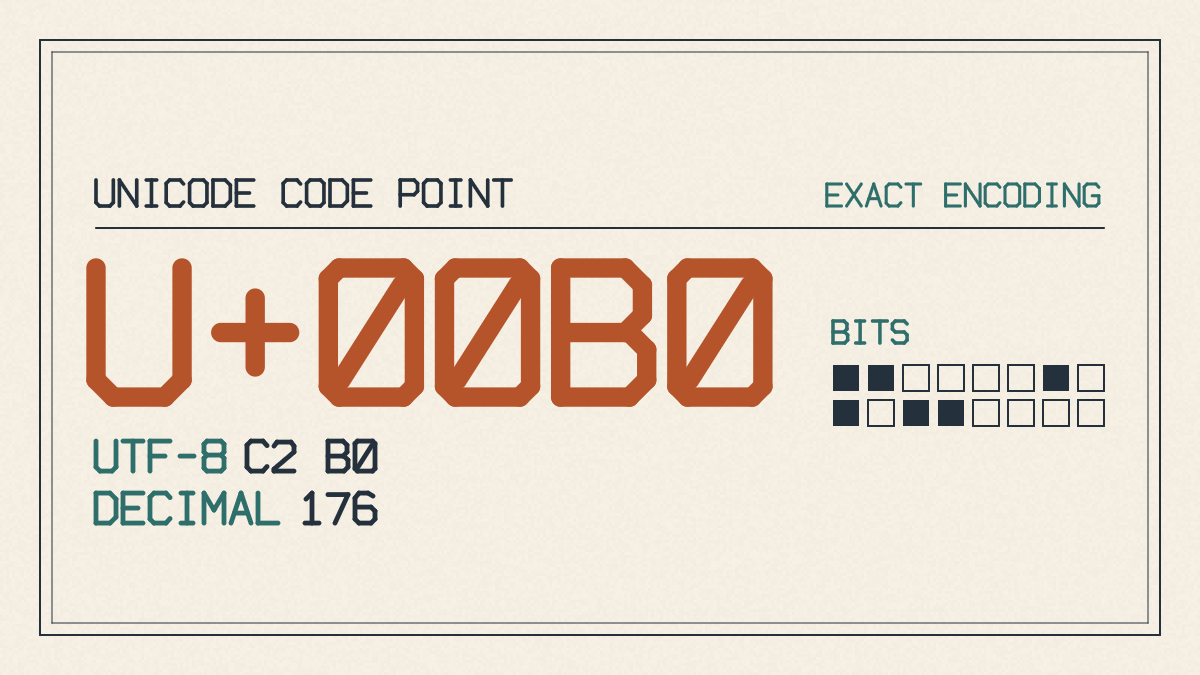
However, you must remember that some laptops come with the numeric keypad turned off by default. If that’s the case, you’ll need to enable it before attempting the keyboard shortcut.
Copy and paste the degree symbol
If neither of the above options appeal to you, then the easiest solution is simply to copy and paste the degree symbol into the document itself. Just copy the following character:
°
And then paste it wherever you’d like to insert it.
Now, you’ll need to be careful, though, because there are two characters that look very similar to the degree symbol.
º
That’s the masculine ordinal indicator. It isn’t a substitute for the degree symbol, so use ° when you mean degrees.
⁰
This character represents the superscript zero, which looks exactly like the degree symbol. However, it’s a different character, and how it looks depends on the font.
So, if you don’t have access to the appropriate keyboard shortcuts, just copy and paste the character that matches the intended meaning.
Angle versus Celsius
One of the things you’ll need to consider is the spacing around the degree symbol. That depends on what kind of measurement it’s being used for.
For instance, an angle such as 45° will have no space between the number and the degree symbol.
However, when dealing with Celsius temperatures, you should include a space between the number and the degree symbol. That means you’ll write it as 25 °C instead of 25°C. For other temperature units, check the correct unit symbol and spacing.
You may also want to follow the rules of SI-style units, including the spaces between the unit and the symbol.