
If you’re wondering how to write superscript in Word and need only to raise a single character, such as an exponent or a superscript, all you have to do is type the entire expression as ordinary text. Then select the character alone and apply superscript to it.
Apply Superscript Using the Shortcut or Ribbon
You can use the documented method of typing your complete expression as usual, selecting only the character that needs to be raised, and applying superscript using either a keyboard shortcut (Ctrl+Shift+Plus sign (+) in Word for Windows) or by pressing the Home ribbon’s Superscript button. The latter is the easiest.
The problem arises if the keys that you need to press are not on your keyboard, because of different keyboard layouts. If you’re working on another layout, you may find that Ctrl+Shift+Plus doesn’t work exactly as intended. But you can also apply the Superscript function through the ribbon instead.
Return Superscript Text to Its Normal State
You can return selected superscript text to its normal state by simply selecting it again and then pressing Ctrl+Spacebar, which removes manual character formatting generally. However, this action will also remove any direct formatting that you’ve applied to your text. For now, you’ll just want to make sure that your selection doesn’t include other characters that shouldn’t be affected by the formatting change.
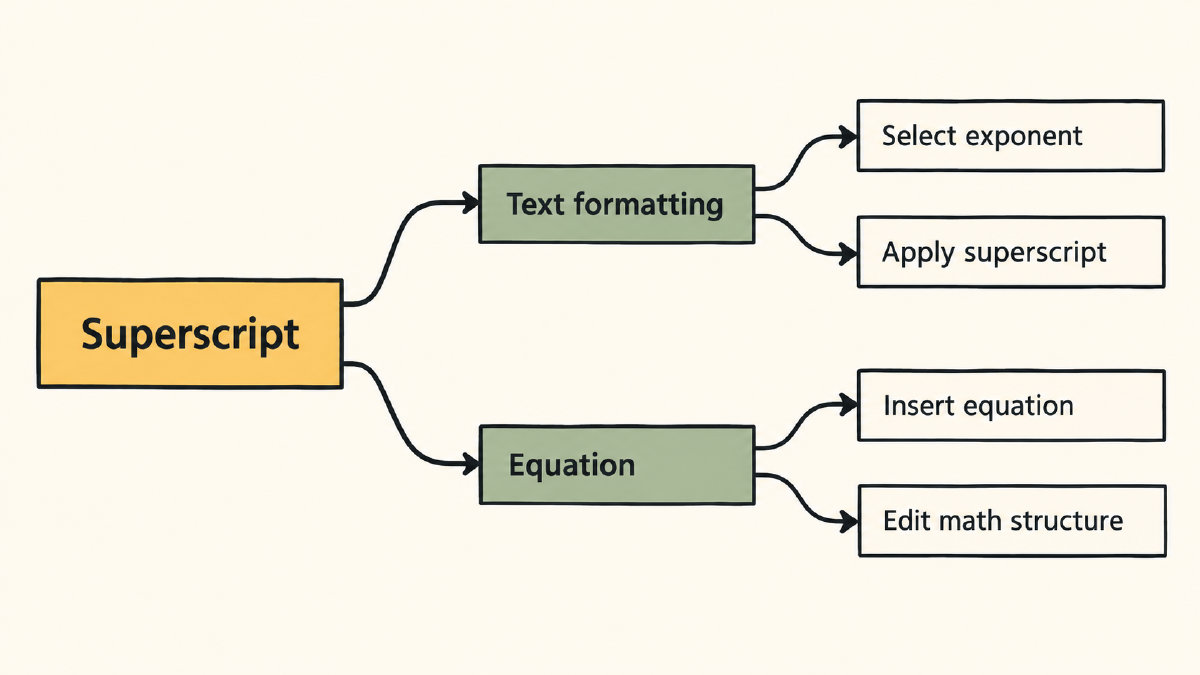
There are two types of raising: One is for raising characters within prose; the other is for creating a structured mathematics that must be continually edited. While both types might look alike, they serve very different purposes. You can start an equation with Insert > Equation or Alt+=, then replace the structure’s placeholders with your values. For equation input, you can choose either UnicodeMath or LaTeX.