
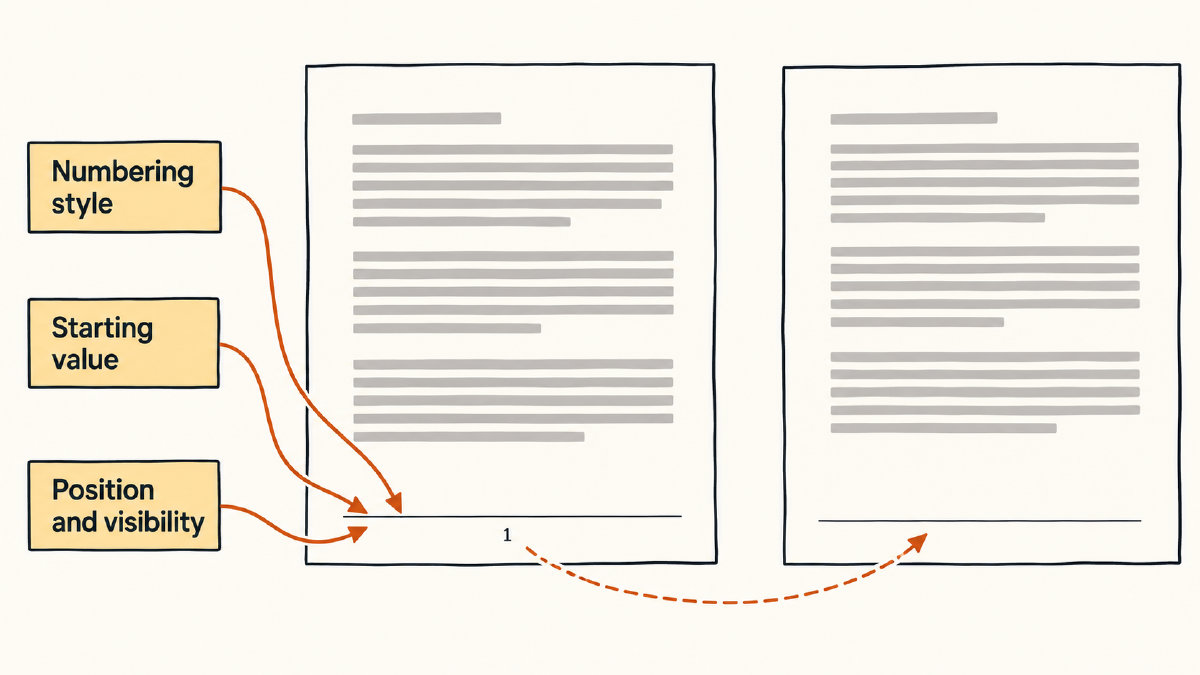
LaTeX provides a powerful set of commands for managing page numbers within your document. While the default behavior might suffice for many applications, there are situations where you may need to change how the current page is numbered or even hide the number entirely.
The numeral style changes the displayed page label and also restarts counting.
You can assign a chosen starting number on the intended page by ending the preceding page first, applying any style change before the counter assignment, and assigning the counter.
In an article, the explicit numbering transition is shown with dedicated matter commands in a book, indicating where preliminaries end and main-text counting restarts.
A built-in centered footer exists that allows custom alternatives either centered or right-aligned; physical placement differs from mirrored outer placement.
One documented adaptation hides the first-page title number by using an explicit page break and separating continued counting from an introduction restarted at one.
Title and chapter pages can differ from surrounding pages. This contrasts document-wide styling with a current-page override. You can customize a page that uses the plain style.
Changing the displayed page label
LaTeX provides a set of commands that allow you to change how the current page is numbered. If you don’t specify otherwise, the first page of the document will display the number “1.” To avoid this, it’s often necessary to make use of these commands to adjust the page numbering in accordance with your needs. These commands typically affect how page numbers appear as well as the sequence in which they appear.
There are several styles of numeral you can choose from: Arabic (arabic), Roman (roman), uppercase Roman (Roman), lowercase letters (alph), and uppercase letters (Alph). The following code resets the counter:
\pagenumbering{arabic}
The above command displays 1, 2, 3, etc. When you issue the command again, it restarts counting at 1. Similarly, \pagenumbering{roman} generates i, ii, iii, iv, and so on, restarting each time it’s called.
Assigning a specific page number
If you want to start at a different page number, then you’ll have to end the preceding page and apply any changes in the style. For example, you can use the following commands to start at the beginning of a new section:
\setcounter{page}{1}
This assigns the number 1 to the current page, while the following command starts at 3 instead of 1:
\setcounter{page}{3}
To ensure you don’t run into problems, be sure to end the current page with either the \newpage command or \clearpage. The latter ensures all figures and tables waiting to be printed will be printed before proceeding to the next page. If you’re applying a numeral style change, you should perform this before assigning the counter.
article vs. book documents
An article document will have a very clear transition between sections. In contrast, books have specific commands for handling such transitions. For example, the following shows how to move from a preliminary text into a full text:
\pagenumbering{roman}
Preliminary Text
\newpage
\pagenumbering{arabic}
Main Text
The \tableofcontents is followed by the command \newpage, before the switch to Arabic numbering occurs. In the case of a book, you can use the following commands:
\frontmatter
Preliminary Text
\mainmatter
Main Text
In addition, there is a special book matter command (\frontmatter) used to generate lowercase Roman numerals. The same setting applies to the \mainmatter, which sets the numbering back to Arabic, but restarts it at 1.
Custom footers
By default, LaTeX provides a simple centered footer using the command \pagestyle{plain}. However, you can define custom headers and footers if you desire.
The standard way to manage page numbers in LaTeX is via the package fancyhdr. By loading it, you can redefine how page numbers appear in headers and footers:
\usepackage{fancyhdr}
\pagestyle{fancy}
With fancyhdr, you can manipulate the fields that contain headers and footers. In order to do so, we first need to erase what was already defined:
\fancyhf{}
Now, we can add content to any field that we’ve specified. Here’s an example of adding a centered page-number footer:
\fancyfoot[C]{\thepage}
Or, a right-aligned version would appear as follows:
\fancyfoot[R]{\thepage}
The left side of the page (L), the center (C), and the right side (R) represent the zones within the document where you want to place the content. In addition, odd and even pages are referred to as O and E, respectively. Headers and footers can be modified independently as well.
The L, C, and R designations indicate where the text should be placed. You can place the header and footer on either the left and right sides, respectively, by modifying the layout. For example, if you want the header to be placed on the left-hand margin and the footer on the right-hand margin, use the following command:
\pagestyle{fancy}
\lhead{\leftmark}
\rfoot{\thepage}
The H, F, L, C, R designations correspond to the areas of the page itself where text appears. For instance, the letter O represents the odd pages, while E represents the even pages. You can also use H and F, representing the header and footer, respectively. Additionally, there are some other options available to you, namely mirrored outer margins. This means that the text will appear on the odd/even coordinates, respectively, of the paper.
Removing page numbers
Some documents don’t include a page number on the first page, such as an academic paper that begins with a title. One solution to this is to include the following lines after issuing the \maketitle command:
\thispagestyle{empty}
Then insert a page break:
\newpage
In doing so, you remove the page number, but continue the count from wherever it left off. If the default behavior is not desired, you can explicitly modify the counter, too. After breaking the page, use the following command:
\setcounter{page}{1}
Chapter titles
As previously mentioned, the page numbers in title and chapter pages can be different than those on the rest of the pages. For instance, in most cases, a document will begin with an automatic page number of 1, but the introduction continues at page 2. The page number will normally appear on subsequent pages too. If you do decide to make an exception, it’s important to note that a current page override will override the document-wide settings.
Page styles can be assigned to individual pages with either the \pagestyle{⟨style⟩} command, which applies the style to the current and subsequent pages, or the \thispagestyle{⟨style⟩}, which applies it to the current page only. The plain style, in particular, may require special consideration, depending upon how the document is structured.
For example, here’s how you can use the plain style to control page numbering:
\chapter{Sample Chapter}
\thispagestyle{empty}
In the above example, the \thispagestyle{empty} overrides the default heading-style changes made by the chapter command. As such, you must ensure that the footer definitions match both the surrounding pages and those using the plain style.
It’s worth noting that the fancyhdr package offers a way to customize the plain style as well. Simply create a custom definition of the plain style through fancyhdr, then simply make sure that the footer matches the remaining parts of the document. For example, the following clears the existing entries and adds a right-aligned page number to match the footer above:
\fancypagestyle{plain}{
  \fancyhf{}
  \fancyfoot[R]{\thepage}
}