
How to Number Equations in Word
By imagetolatex team · Published
To number an equation in Word, click at the end of the display equation, type #(1) and press Enter: Word keeps the equation centered and puts (1) at the right margin. For numbers that update themselves and can be cross-referenced, replace the typed 1 with a caption number from References > Insert Caption.
Method 1: type #(1) inside the equation
- Step 1: Make it a display equationThe equation must be on its own line. If it sits inside a sentence, open its drop-down arrow and choose Change to Display.
- Step 2: Go to the end of the equationClick inside the equation box and press End so the cursor is after the last character.
- Step 3: Type the numberType
#(1)(a hash, then the number in parentheses) and press Enter. Word builds the equation and right-aligns (1).
The number is plain text inside the equation, so you renumber by hand when you insert an equation above it. That is fine for a short assignment; for a thesis use method 2.
E = mc^2#(1)Method 2: automatic numbers with captions
- Step 1: Number the first equation with #(1)Use method 1 so the equation already has a right-aligned number.
- Step 2: Insert a captionPut the cursor on an empty line below, choose References > Insert Caption, set Label to Equation and tick Exclude label from caption so only the number appears. Click OK.
- Step 3: Move the number into the equationCut the caption number and paste it inside the equation, replacing the typed 1 between the parentheses. Delete the empty caption line.
- Step 4: Reuse itSelect the equation, open its drop-down arrow and choose Save as New Equation. Each time you insert it from the gallery, the number continues the sequence.
- Step 5: Update and cross-referenceSelect the document and press F9 to update numbers. To mention an equation in the text, bookmark its number (Insert > Bookmark) and use References > Cross-reference to that bookmark.
Long equations can push the number past the margin with the #() method. If that happens, break the equation into lines first, or use a borderless 3-column table (narrow, wide, narrow) with the caption number in the right cell.
Getting the equations into Word first
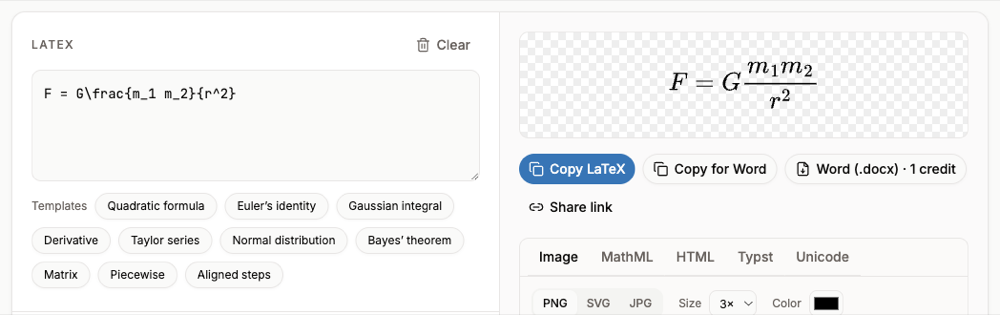
Numbering is the easy part; retyping long equations is what takes time. If you have them as LaTeX (from Overleaf, a paper or an AI chat), paste each one into the free LaTeX equation editor, check the preview and use Copy for Word. Then add the #(n) number in Word.
Numbering in LaTeX itself is automatic with the equation environment, which is one reason people draft math in LaTeX and move it to Word at the end. For a whole .tex file, the LaTeX to Word converter turns every equation into a Word equation at once.
FAQ
- How do I put the equation number on the right in Word?
- Type
#(1)at the end of a display equation and press Enter. Word centers the equation and right-aligns the number. - How do I add numbers by chapter, like (2.1)?
- In Insert Caption, click Numbering, tick Include chapter number and choose the heading style that starts each chapter. Your chapter headings must use a numbered heading style.
- Why does #(1) not work?
- It works only in display equations and only when you press Enter at the end of the equation. Inline equations keep #(1) as literal text.
- Do the numbers update when I add an equation?
- Typed #(1) numbers do not. Caption numbers do: select the document and press F9 to refresh them and every cross-reference.