
Microsoft Word Equation Editor
By imagetolatex team · Published
The Microsoft Word equation editor opens with Insert > Equation or Alt+= on Windows (Control+= on a Mac). Word drops an equation box at the cursor and shows the Equation tab, where you pick structures (fractions, scripts, radicals, matrices) or type the math with keyboard codes. The old Equation Editor 3.0 is gone, so equations made with it can no longer be edited in Word.
Open the equation editor
- Step 1: Place the cursorClick where the equation should go: on its own line for a display equation, or inside a sentence for an inline one.
- Step 2: Insert the equationSelect Insert > Equation, or press Alt+= (Windows) / Control+= (Mac). To start from a ready-made formula such as the quadratic formula, open the arrow next to Equation and pick one from the gallery.
- Step 3: Type or build the mathType letters and numbers directly. Use the Equation tab for structures: choose a fraction or script template, then fill each placeholder box.
- Step 4: Leave the equationPress the right arrow key at the end of the box or click outside it. Click the equation again to edit it later.
The tab is called Equation in current Microsoft 365. Older versions labelled it Design under Equation Tools; the controls are the same.
Type math instead of clicking
Word reads a linear format while you type and builds it up into a formatted equation. In the default UnicodeMath input, a/b followed by a space becomes a stacked fraction, x^2 a superscript, x_i a subscript and \alpha the Greek letter α.
Microsoft 365 subscribers can also type LaTeX: on the Equation tab, in the Conversions group, switch the input format from UnicodeMath to LaTeX. Then type or paste LaTeX such as \frac{a}{b} and choose Convert > Professional (Ctrl+=) to build it up. Ctrl+Shift+= turns a built-up equation back into its linear source. The full walkthrough is in How to Type LaTeX in Word.
Edit an existing equation
- Click inside the equation to select it; the Equation tab appears again.
- Change a symbol by selecting it and typing, or place the cursor in a placeholder and choose a new structure.
- Switch between display and inline: open the equation's drop-down arrow and choose Change to Inline or Change to Display.
- Save a formula you reuse: open the drop-down arrow and choose Save as New Equation; it then appears at the top of the equation gallery.
Why old equations say "Microsoft Equation is not available"
Equation Editor 3.0, the object-based editor in older Word versions, was removed from all versions in the January 2018 update for security reasons. Microsoft notes that those objects still display if the MT Extra font is installed, but they can only be edited with MathType. To keep working in Word alone, retype the equation with the built-in editor, or take a screenshot of it and convert the picture back into an equation (next section).
When the equation only exists as a picture
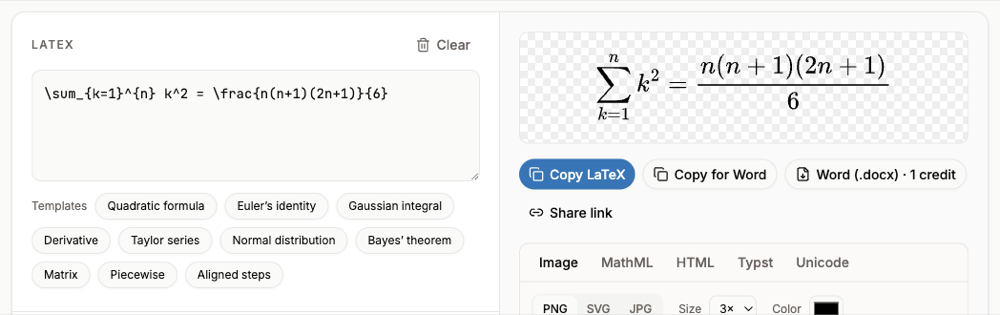
Equations in screenshots, scanned handouts or old Equation 3.0 objects cannot be clicked and edited. Paste the image into the image to LaTeX converter: single printed formulas are free within a daily limit and need no account. Check the preview, then use Copy for Word and paste into Word, where the result arrives as a normal Word equation.
FAQ
- Where is the equation editor in Word?
- On the Insert tab, at the right: Equation. The keyboard shortcut is Alt+= on Windows and Control+= on a Mac.
- Why is the Equation button greyed out?
- Usually because the document is in Compatibility Mode (an old .doc file). Save it as .docx with File > Save As, and the button becomes available.
- Can I type LaTeX in the Word equation editor?
- Yes, in Word for Microsoft 365: switch the equation input to LaTeX in the Conversions group of the Equation tab, type the LaTeX, then choose Convert > Professional.
- Can I still edit Equation 3.0 objects?
- Not in Word. Microsoft removed Equation Editor 3.0 in 2018; those objects can be edited only with MathType, or recreated as new Word equations.