
How to Copy Google AI Overview Equations to Word
By imagetolatex team · Published
An AI Overview in Google Search shows formulas rendered, and there is no copy option that gives you the equation itself; selecting the text copies loose symbols. The dependable route is a screenshot: capture the formula, convert the image to LaTeX, and paste it into Word as an equation.
From AI Overview to Word in 4 steps
- Step 1: Show the whole formulaExpand the AI Overview (Show more) so the formula is fully visible and not cut off.
- Step 2: Take a screenshot of just the formulaWindows: Win+Shift+S. Mac: Control+Shift+Command+4 copies the selection to the clipboard. Crop tightly around the formula.
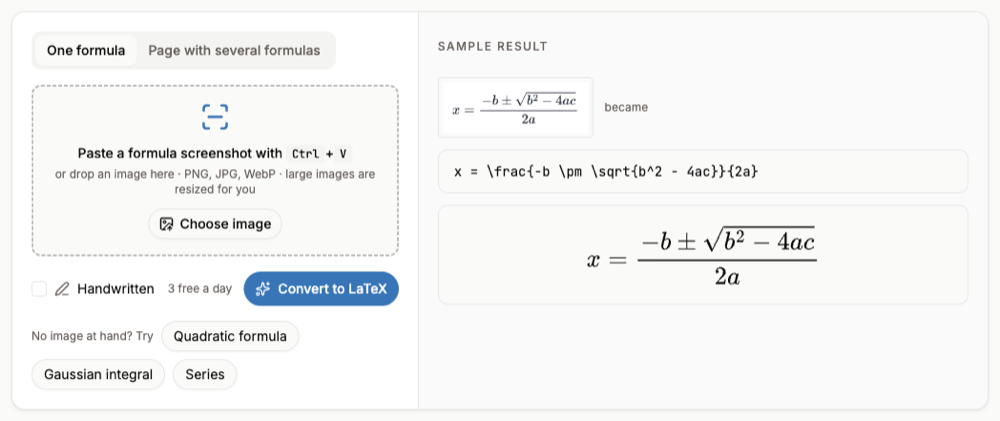
- Step 3: Convert itOpen the image to LaTeX converter and press Ctrl+V (Command+V on a Mac). Single printed formulas are free within a daily limit.
- Step 4: Paste into WordCheck the preview against Google's answer, then click Copy for Word and paste into Word.
Several formulas in one overview
Screenshot the whole overview and switch the converter to Page with several formulas: each formula is listed separately and you can export the ones you need to one Word file. This mode needs a free account and uses credits.
Continuing in AI Mode or Gemini
If you follow up in AI Mode or Gemini, you can ask for the LaTeX source directly and skip the screenshot. The steps for that are in How to Copy Gemini Equations to Word.
FAQ
- Why not copy the text of the AI Overview?
- The rendered formula is split into separate characters, so fractions, roots and exponents lose their structure when pasted.
- Do I need an account?
- No, for one printed formula at a time within the daily free limit. Pages with several formulas and handwriting need a free account.
- Does it work for Google Docs?
- Copy the LaTeX instead of Copy for Word, and render it in Docs with an add-on, or download a PNG from the LaTeX editor.
- What if the recognized LaTeX is wrong?
- Edit it in the code box; the preview updates as you type. You can also re-run it with the high-accuracy engine, which uses a credit.